
Remote Repositories
Last updated on 2026-07-15 | Edit this page
Overview
Questions
- How do I connect my code to other versions of the it?
Objectives
- Learn about remote repositories.
https://www.atlassian.com/git/tutorials/syncing
Git’s distributed collaboration model, which gives every developer their own copy of the repository, complete with its own local history and branch structure. Users typically need to share a series of commits rather than a single “changeset”. Instead of committing a “changeset” from a working copy to the central repository, Git lets you share entire branches between repositories.
Git remote
The git remote command lets you create, view, and delete connections to other repositories. Remote connections are more like bookmarks rather than direct links into other repositories. Instead of providing real-time access to another repository, they serve as convenient names that can be used to reference a not-so-convenient URL.
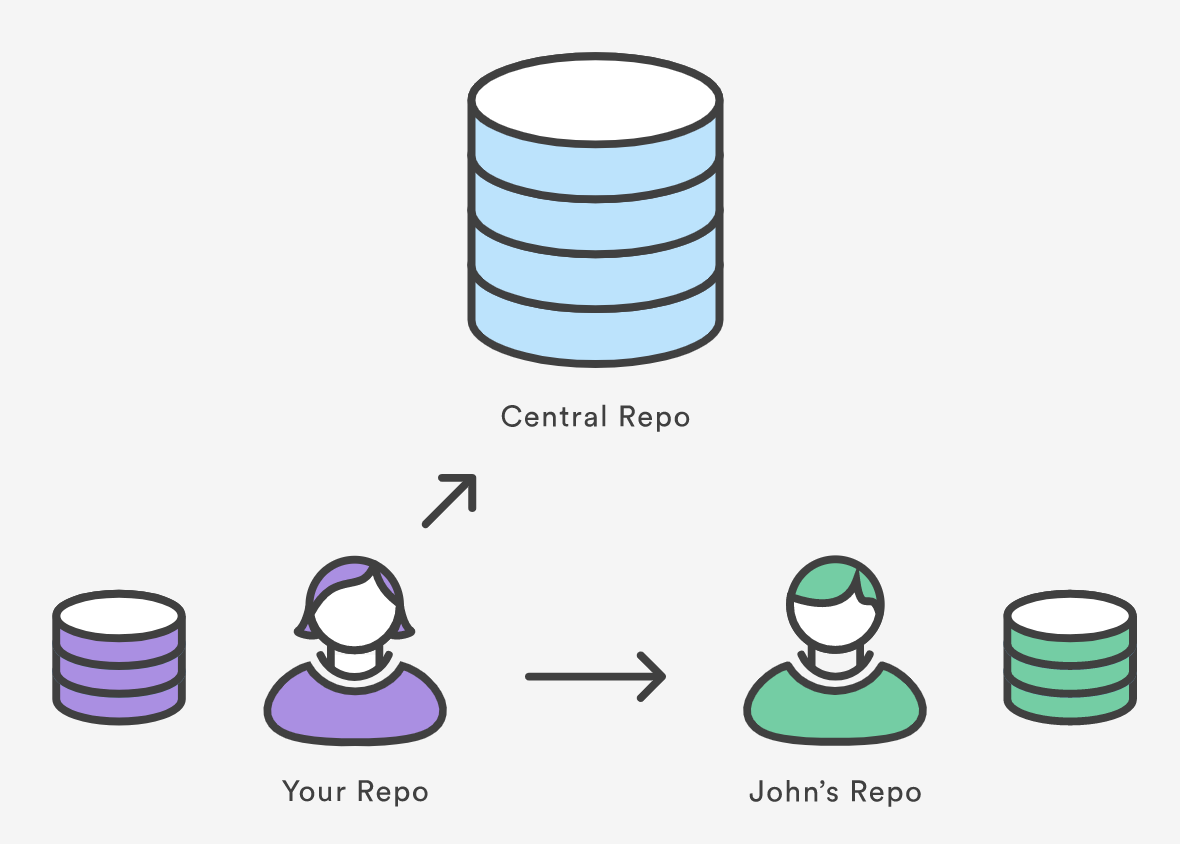
For example, the diagram above shows two remote connections from your repo into the central repo and another developer’s repo. Instead of referencing them by their full URLs, you can pass the origin and john shortcuts to other Git commands.
The git remote command is essentially an interface for
managing a list of remote entries that are stored in the repository’s
./.git/config file. The following commands are used to view
the current state of the remote list.
Git is designed to give each developer an entirely isolated
development environment. This means that information is not
automatically passed back and forth between repositories. Instead,
developers need to manually pull upstream commits into their local
repository or manually push their local commits back up to the central
repository. The git remote command is really just an easier
way to pass URLs to these “sharing” commands.
Adding a Remote Repository
Earlier, we created a repository on GitLab. Now, we need to connect
our local repository to that remote repository. The command for this is
git remote add:
You can find the repository URL on the main page of your remote
repository. It should look something like
https://gitlab.com/username/repository-name.git. The
location of this URL will depend on the hosting service you are using
(GitLab, GitHub, Bitbucket, etc.).
Most hosting services will provide the URL in two forms: HTTPS and SSH. If you are unsure which one to use, choose HTTPS. SSH requires additional setup which we do not cover in this training.
View Remote Configuration
To list the remote connections of your repository to other
repositories you can use the git remote command:
If you test this in our training repository, you should get only one
connection, origin:
When you clone a repository with git clone,
git automatically creates a remote connection called
origin pointing back to the cloned repository. This is
useful for developers creating a local copy of a central repository,
since it provides an easy way to pull upstream changes or publish local
commits. This behaviour is also why most Git-based projects call their
central repository origin.
We can ask git for a more verbose (-v)
answer which gives us the URLs for the connections:
Syncing with Remote Repositories
So we have a remote connection, but how do we make the code in our
local repository match the code in the remote repository? There are
three commands that we use to sync code between repositories:
git fetch, git pull, and
git push.
-
fetch- Downloads commits, files, and refs, but does not modify your working directory. This gives you a chance to review changes before integrating them into your local repository. -
pull- Downloads commits, files, and refs, and immediately merges them into your local branch. This is a convenient way to integrate changes from a remote repository into your local repository in one step. -
push- Uploads your local commits to a remote repository. This is how you share your changes with other developers.
Let’s use git pull to retrieve the latest changes from
the remote repository:
OUTPUT
$ git pull
remote: Enumerating objects: 3, done.
remote: Counting objects: 100% (3/3), done.
remote: Compressing objects: 100% (2/2), done.
remote: Total 3 (delta 0), reused 0 (delta 0), pack-reused 0 (from 0)
Unpacking objects: 100% (3/3), 2.74 KiB | 701.00 KiB/s, done.
From <REPOSITORY-URL>
 * [new branch]      main       -> origin/main
There is no tracking information for the current branch.
Please specify which branch you want to merge with.
See git-pull(1) for details.

    git pull <remote> <branch>

If you wish to set tracking information for this branch you can do so with:

    git branch --set-upstream-to=origin/<branch> main
So what happened? As we might have seen in previous sections, git
isn’t always clever, or at least it isn’t willing to make assumptions
about what we want to do. In this case, git is saying that it pulled
down changes from the remote repository, but it doesn’t know what to do
with them. This is because our local main branch isn’t set
up to track the main branch on the origin
remote.
We can use the suggested command to set up the tracking information:
This explicitly tells git that the local main branch is
the same as the main branch on the origin
remote. Now, if we run git pull again, git will know what
to do:
Viewing Remote Information
To see more detailed information about a specific remote connection,
you can use the git remote show command followed by the
name of the remote. For example, to see information about the
origin remote, you would run:
OUTPUT
$ git remote show origin
* remote origin
  Fetch URL: <REPOSITORY-URL>
  Push  URL: <REPOSITORY-URL>
  HEAD branch: main
  Remote branch:
    main tracked
  Local branch configured for 'git pull':
    main merges with remote main
  Local ref configured for 'git push':
main pushes to main (fast-forwardable)It’s possible to have more than one remote for a given repository.
You can add additional remotes with
git remote add <name> <url>, and then view them
with git remote -v or
git remote show <name>.
This might be used if, for instance, you have a central repository
that you store your projects in, but also another repository that you
use for backup purposes. You could have remotes called
origin and backup, each pointing to different
URLs.
Pushing to Remote Repositories
We pulled changes from the remote repository, but if we refresh the
page on Gitlab, we won’t see our local commits there. If we run the
git status command we can see that git is aware that our
local branch has some commits that aren’t on the remote branch:
OUTPUT
$ git status
On branch main
Your branch is ahead of 'origin/main' by 9 commits.
  (use "git push" to publish your local commits)

nothing to commit, working tree clean
Let’s use the git push command to upload our local
commits to the remote repository:
OUTPUT
$ git push
Enumerating objects: 28, done.
Counting objects: 100% (28/28), done.
Delta compression using up to 2 threads
Compressing objects: 100% (21/21), done.
Writing objects: 100% (27/27), 2.72 KiB | 696.00 KiB/s, done.
Total 27 (delta 4), reused 0 (delta 0), pack-reused 0
To <REPOSITORY-URL>
   5be9f46..0622c3a  main -> main
If we now refresh the page on Gitlab, we should see our commits there!
Creating a branch and pushing it to the remote
Create a new branch in our local repository called
bean-dip and add the following recipe in a file called
bean-dip.md:
# Bean Dip
## Ingredients
- beans
## Instructions
Add and commit the new file, then push the new branch to the remote
repository with git push. What happens? Can you find the
branch on the remote?
BASH
git branch bean-dip
git switch bean-dip
nano bean-dip.md
git add bean-dip.md
git commit -m "Add bean dip recipe."
git push
What happens here can depend on the version of git you are using. In more recent versions, git will automatically create the remote branch when you push a local branch that doesn’t exist on the remote. In older versions, you may need to specify the remote and branch name explicitly:
Fetching Remote Changes
We need to visit GitHub to make our edits directly on the
README.md file using the web UI and commit the change.
Now back in our local git repo, we will first fetch the changes but not merge them yet, see what was fetched, compare both local and remote statuses, then finally pull the changes.
How does git fetch differ from git pull
based on what you observed?
You can use git log --oneline --all to see commits
across all branches, including remote-tracking branches like
origin/main.
OUTPUT
On branch main
Your branch is behind 'origin/main' by 1 commit, and can be fast-forwarded.
  (use "git pull" to update your local branch)
nothing to commit, working tree cleanOUTPUT
a4275da (origin/main, origin/HEAD) Change title in README.md
4eef8f7 (HEAD -> main) Init commit
b02715d Initial commitOUTPUT
Updating 4eef8f7..a4275da
Fast-forward
 README.md | 2 +-
 1 file changed, 1 insertion(+), 1 deletion(-)
git fetch pulls the updates from the remote, it does not
move the local branches and leaves the remote branch updated
(origin/main), while the local is not touched
(HEAD -> main), as shown by the log. The
git pull command executes fetch and merge at once.
- The
git remotecommand allows us to create, view and delete connections to other repositories. - Remote connections are like bookmarks to other repositories.
- Other git commands (
git fetch,git push,git pull) use these bookmarks to carry out their syncing responsibilities.