
Merging
Last updated on 2026-06-16 | Edit this page
Overview
Questions
- How do I merge a branch changes?
Objectives
- Learn about
git merge.
When you are collaborating, you will have to merge a branch
independent if your branch may or may not have diverged from the main
branch. Most of the Git hosting platform like GiHub or Gitlab allows you
to merge a branch from their web interface but you can also merge the
branches from your machine using git merge.
There are 2 ways to merge:
non-fast-forward merged (recommended)
fast forward merged
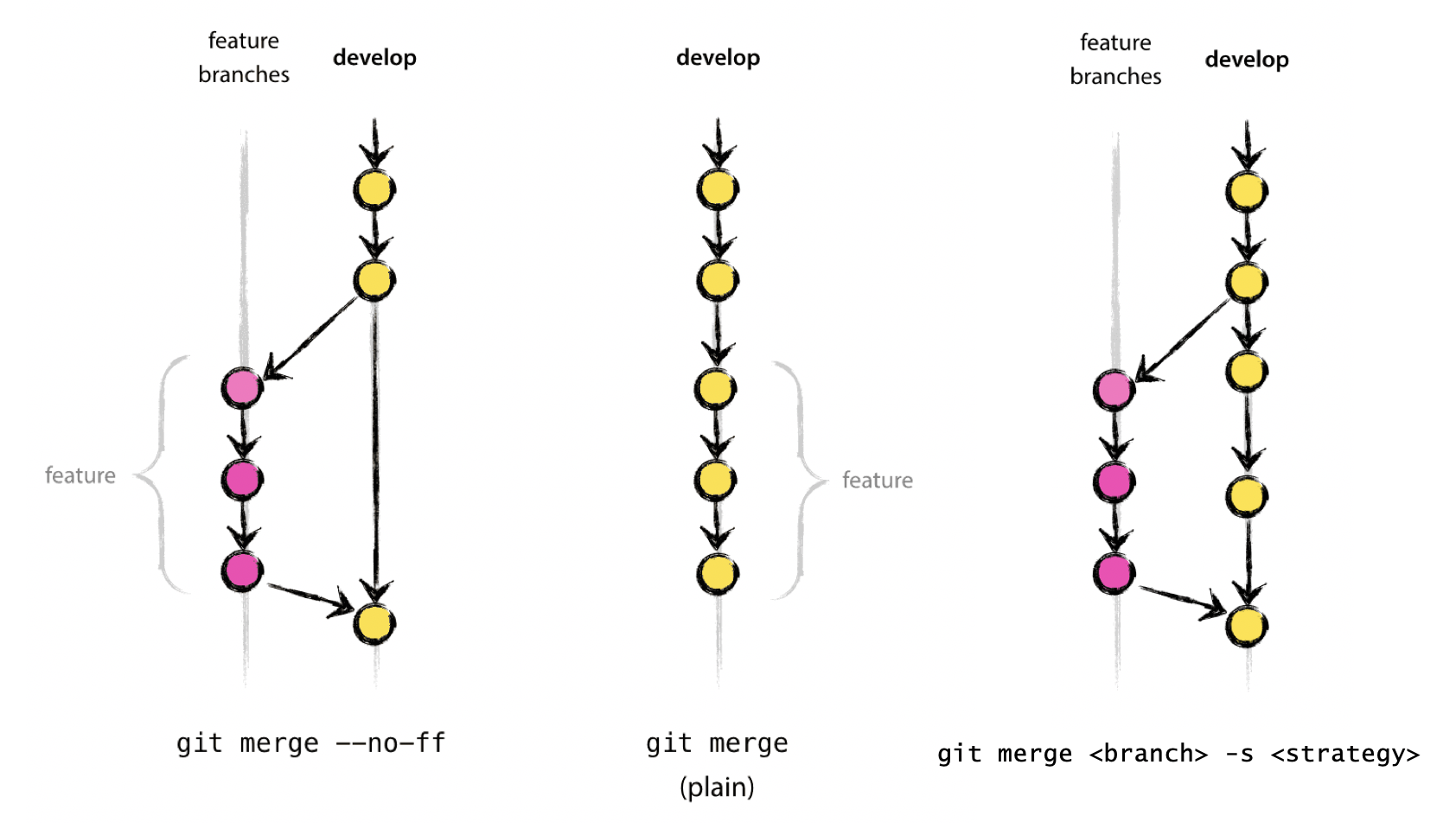
Fast-forward Merge
If there are no conflicts with the main branch, we can perform a
“fast-forward” merge. This works by moving the branch pointer to the
latest commit in the target branch. This is the default behaviour of
git merge (when possible).
Let’s merge in our yaml-format branch back into
main using a fast-forward merge:
OUTPUT
$ git merge yaml-format
Updating ec240ab..68b09d0
Fast-forward
 guacamole.md   | 7 -------
 guacamole.yaml | 6 ++++++
 2 files changed, 6 insertions(+), 7 deletions(-)
 delete mode 100644 guacamole.md
 create mode 100644 guacamole.yaml
If we look at the log, we can see that the commits that we made on
the yaml-format branch are now a part of the
main branch:
OUTPUT
$ git log --oneline --graph
68b09d0 (HEAD -> main, yaml-format) Rename recipe file to use .yaml extension.
a2b55be Reformat recipe to use YAML.
ec240ab Ignore png files and the pictures folder.
20c856c Write prices for ingredients and their source
11cdb65 Add some initial cakes
7cdeaef Modify guacamole to the traditional recipe
4b58094 Add ingredients for basic guacamole
cdb0c21 Create initial structure for a Guacamole recipeNote that our old branch is stil there!
OUTPUT
$ git branch -avv
* main        68b09d0 Rename recipe file to use .yaml extension.
  yaml-format 68b09d0 Rename recipe file to use .yaml extension.
It’s just that both branches now point to the same commit. Until we specifically delete the branch, it will remain in the repository.
If using the fast-forward merge, it is impossible to see from the
git history which of the commit objects together have
implemented a feature. You would have to manually read all the log
messages. Reverting a whole feature (i.e. a group of commits), is a true
headache in the latter situation, whereas it is easily done if the
–no-ff flag was used.
For a good illustration of fast-forward merge (and other concepts), see this thread: https://stackoverflow.com/questions/9069061/what-effect-does-the-no-ff-flag-have-for-git-merge
Non-fast-forward Merge
A non fast-forward merge makes a new commit that ties together the histories of both branches.
Let’s make a new branch and add a commit to it:
Now, let’s move back to the main branch and merge the changes from
the add-instructions branch using a non-fast-forward
merge:
BASH
git switch main
git merge --no-ff add-instructions -m "Merge add-instructions branch into main."
OUTPUT
$ git merge --no-ff add-instructions -m "Merge add-instructions branch into main."
Merge made by the 'ort' strategy.
 guacamole.yaml | 4 +++-
 1 file changed, 3 insertions(+), 1 deletion(-)
Let’s look at the log to see what happened:
OUTPUT
$ git log --oneline --graph
$ git log --oneline --graph
*   a20b39f (HEAD -> main) Merge add-instructions branch into main.
|\
| * 22e4eb6 (add-instructions) Add instructions to guacamole recipe.
|/
* 68b09d0 (yaml-format) Rename recipe file to use .yaml extension.
* a2b55be Reformat recipe to use YAML.
The --no-ff flag causes the merge to always create a new
commit object, even if the merge could be performed with a fast-forward.
This avoids losing information about the historical existence of a
feature branch and groups together all commits that together added the
feature.
Merge Conflicts
When merging branches, it’s not uncommon to encounter a “merge conflict”. This happens when the same part of the same has been modified in both the source and target branches. In these cases, git will pause the merge and ask you to resolve the conflict manually.
Let’s create a conflict by modifying the same line in both branches.
BASH
git switch main
git branch modify-guac-instructions
git switch modify-guac-instructions
nano guacamole.yaml
And let’s change the final step to something more informative:
YAML
instructions: |
  1. Cut avocados in half and remove pit.
  2. Slice the avocados and mash them with a fork.
Commit the change:
Now, let’s switch back to the main branch and modify the
same line differently:
Change the final step to:
YAML
instructions: |
  1. Cut avocados in half and remove pit.
  2. Use a food processor to blend the avocados.
Commit the change:
BASH
git add guacamole.yaml
git commit -m "Modify guacamole instructions to include food processor."
Now, let’s try to merge the modify-guac-instructions
branch into main:
OUTPUT
$ git merge modify-guac-instructions
Auto-merging guacamole.yaml
CONFLICT (content): Merge conflict in guacamole.yaml
Automatic merge failed; fix conflicts and then commit the result.
In addition to this message, our branch name in the terminal prompt
may also be prefixed with (main|MERGING) to indicate that
we are in the middle of a merge, and not in the normal flow of git
operations.
Git has marked the conflict in the guacamole.yaml file.
Let’s open it to see what happened:
nano guacamole.yamlYAML
name: Guacamole
ingredients:
  avocado: 1.35
  lime: 0.64
  salt: 2
instructions: |
  1. Cut avocados in half and remove pit.
<<<<<< HEAD
  2. Use a food processor to blend the avocados.
=======
  2. Slice the avocados and mash them with a fork.
>>>>>> modify-guac-instructions
The lines between <<<<<< HEAD and
======= show the changes from the main branch,
while the lines between ======= and
>>>>>> modify-guac-instructions show the
changes from the modify-guac-instructions branch.
There are tools and editors that can help you resolve merge conflicts, but at its core, all we need to do is decide which changes to keep. We can keep one side, the other side, or even combine both changes.
You can resolve the conflict however you like - as long as the final file is valid and no longer contains the merge conflict markers.
Upon saving the file, however, the merge is not yet complete. We need to stage the resolved file and commit the merge:
We can see the branch / merge process in our log:
OUTPUT
$ git log --oneline --graph
*   a94e041 (HEAD -> main) Resolve merge conflict in guacamole.yaml.
|\
| * 21be5b1 (modify-guac-instructions) Modify guacamole instructions mashing.
* | c6ae196 Modify guacamole instructions to include food processor.
|/
*   d6ade9c Merge add-instructions branch into main.
|\
| * 4d1c414 (add-instructions) Add instructions to guacamole recipe.
|/
* f36de20 (yaml-format) Rename recipe file to use .yaml extension.
...Exercise: Creating a fast-forward merge.
Create a branch in your repository for finishing the guacamole recipe
by adding instructions. Then, merge the branch back into
main using a fast-forward merge.
Exercise: Resolving a merge conflict.
Create a merge conflict by modifying the same line in both the
main branch and a new branch. Then, merge the new branch
into main, resolve the conflict, and complete the
merge.
This is free-form, so there is no single correct solution.
BASH
git switch main
nano salsa.md
git add salsa.md
git commit -m "Add initial salsa recipe."
git branch modify-salsa
git switch modify-salsa
nano salsa.md
git add salsa.md
git commit -m "Modify salsa recipe to include tomatoes."
git switch main
nano salsa.md
git add salsa.md
git commit -m "Modify salsa recipe to include onions."
git merge modify-salsa
# Resolve the conflict in salsa.md
git add salsa.md
git commit -m "Resolve merge conflict in salsa.md."
Three-way Merge
Similar to --no-ff, but there may be dragons. Forced
upon you when there’s an intermediate change since you branched. May
prompt you to manually resolve
See https://git-scm.com/docs/merge-strategies for a zillion options (“patience”, “octopus”, etc), But also git is only so smart and you are probably smarter.
There are a number of external tools that have a graphical interface to allow for merge conflict resolution. Some of these include: kdiff3 (Windows, Mac, Linux), Meld (Windows, Linux), P4Merge (Windows, Mac, Linux), opendiff (Mac), vimdiff (for Vim users), Beyond Compare, GitHub web interface. We do not endorse any of them and use at your own risk. In any case, using a graphical interface does not substitute for understanding what is happening under the hood.
-
git merge --no-ffis the best way to merge changes -
git merge --ff-onlyis a good way to pull down changes from remote - merge conflicts happen when the same part of the same file has been modified in both branches
- merge conflicts must be resolved manually