
Undoing Changes
Last updated on 2026-06-16 | Edit this page
Overview
Questions
- How do I undo changes?
Objectives
- How do I roll back a single change?
- How do I get back to a specific state?
Git Revert
Reverting undoes a commit by creating a new commit. This is a safe way to undo changes, as it has no chance of re-writing the commit history. For example, the following command will figure out the changes contained in the 2nd to last commit, create a new commit undoing those changes, and tack the new commit onto the existing project.
Let’s make a commit to revert first. On our bean-dip
branch, let’s add a line to our bean-dip.md file and commit
it.
After making that commit, maybe we second guess and decide we don’t
want that change after all. We can use git revert to back
out that last commit.
We get a text editor window asking us for a commit message for the revert commit. Save and close the editor to complete the revert.
Let’s run git log --oneline to see what happened.
OUTPUT
$ git log --oneline
96f26c7 (HEAD -> bean-dip) Revert "Add bean dip recipe"
b8732e4 Add bean dip recipe
79cb366 (origin/bean-dip) Add bean dip recipe.
Reverting doesn’t actually delete the previous commit - it just creates a new commit that undoes exactly the changes made in that commit.
We can also revert to specific commits by providing the commit SHA
instead of HEAD, or undo several commits by using
HEAD~n where n is the number of commits to go
back.
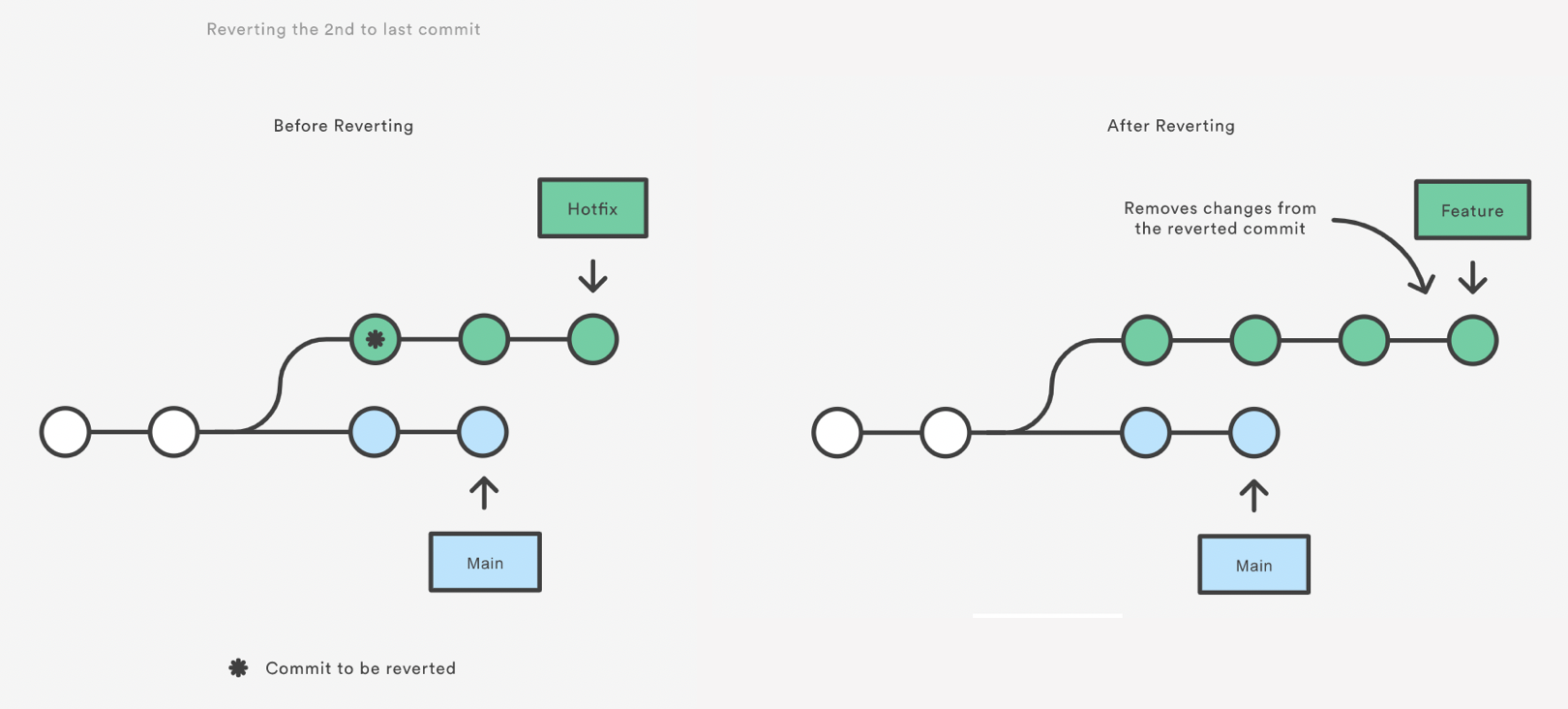
Note that revert only backs out the atomic changes of the ONE specific commit (by default, you can also give it a range of commits but we are not going to do that here, see the help).
git revert does not rewrite history which is why it is
the preferred way of dealing with issues when the changes have already
been pushed to a remote repository.
Git Reset
Resetting is a way to move the tip of a branch to a different commit. This can be used to remove commits from the current branch. For example, the following command moves the branch backwards by two commits.
OUTPUT
$ git reset HEAD~1
Unstaged changes after reset:
D       bean-dip.md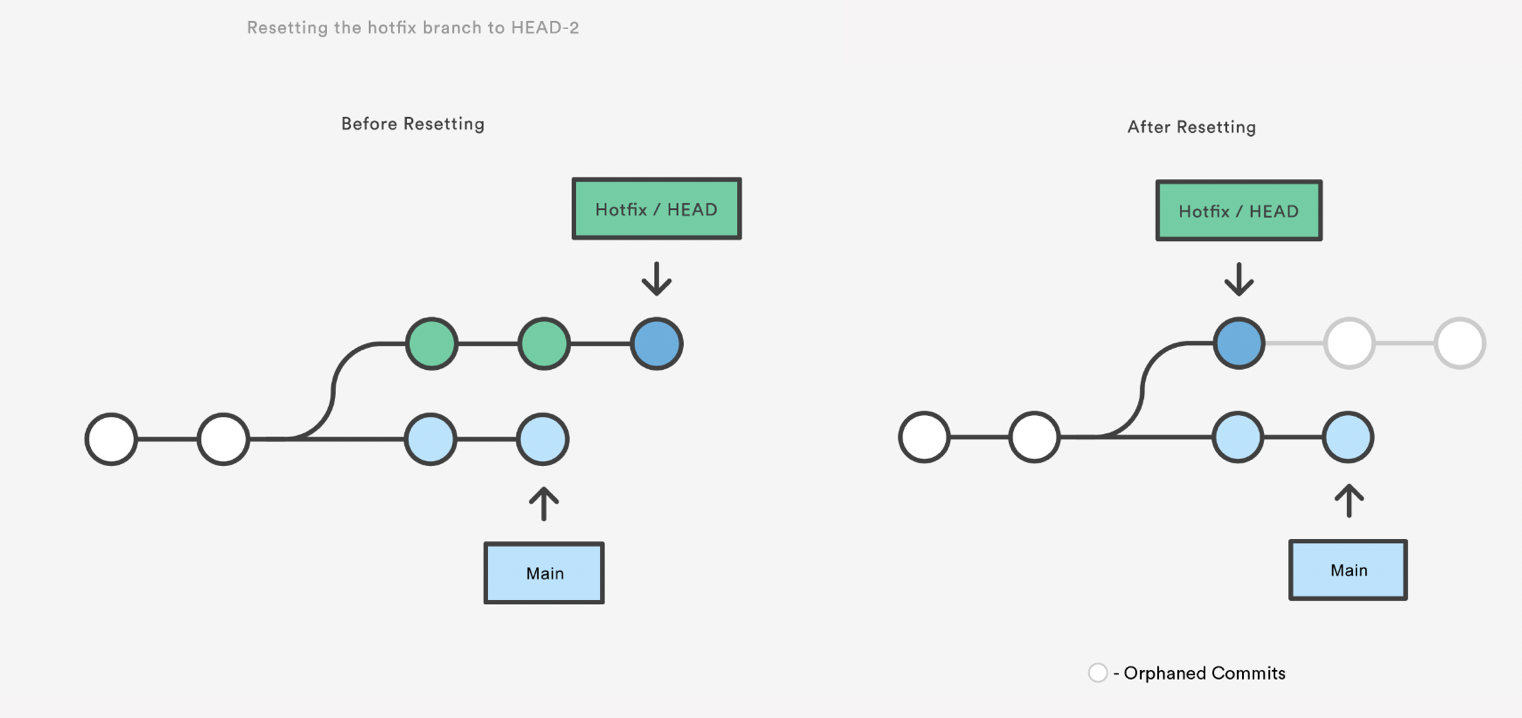
The two commits that were on the end of hotfix are now
dangling, or orphaned commits. This means they will be deleted the next
time git performs a garbage collection. In other words,
you’re saying that you want to throw away these commits.
git reset is a simple way to undo changes that haven’t
been shared with anyone else. It’s your go-to command when you’ve
started working on a feature and find yourself thinking, “Oh crap, what
am I doing? I should just start over.”
In addition to moving the current branch, you can also get
git reset to alter the staged snapshot and/or the working
directory by passing it one of the following flags:
–soft – The staged snapshot and working directory are not altered in any way.
–mixed – The staged snapshot is updated to match the specified commit, but the working directory is not affected. This is the default option.
–hard – The staged snapshot and the working directory are both updated to match the specified commit.
It’s easier to think of these modes as defining the scope of a git reset operation.
Let’s discard our changes completely using --hard:
OUTPUT
$ git reset HEAD --hard
HEAD is now at bb3edf6 Add bean dip recipeGit Checkout: A Gentle Way
We already saw that git checkout is used to move to a
different branch but can also be used to update the state of the
repository to a specific point in the projects history.
OUTPUT
$ git checkout HEAD~2
Note: switching to 'HEAD~2'.

You are in 'detached HEAD' state. You can look around, make experimental
changes and commit them, and you can discard any commits you make in this
state without impacting any branches by switching back to a branch.

If you want to create a new branch to retain commits you create, you may
do so (now or later) by using -c with the switch command. Example:

  git switch -c <new-branch-name>

Or undo this operation with:

  git switch -

Turn off this advice by setting config variable advice.detachedHead to false

HEAD is now at c6ae196 Modify guacamole instructions to include food processor.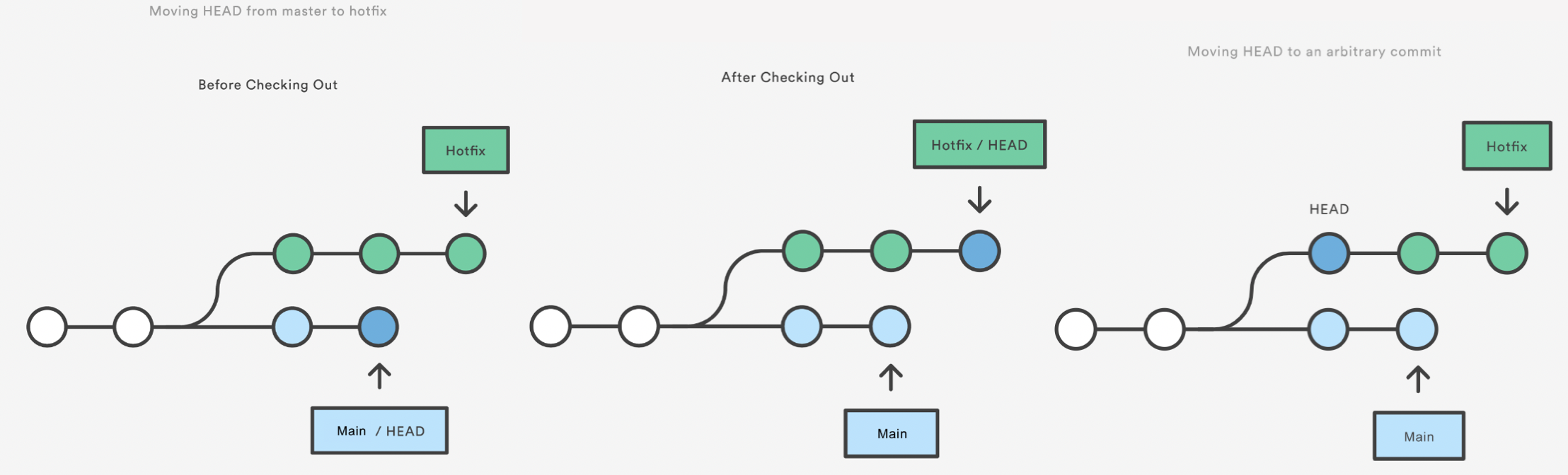
This puts you in a detached HEAD state. AGHRRR!
Most of the time, HEAD points to a branch name. When you add a new commit, your branch reference is updated to point to it, but HEAD remains the same. When you change branches, HEAD is updated to point to the branch you’ve switched to. All of that means that, in these scenarios, HEAD is synonymous with “the last commit in the current branch.” This is the normal state, in which HEAD is attached to a branch.
The detached HEAD state is when HEAD is pointing directly to a commit instead of a branch. This is really useful because it allows you to go to a previous point in the project’s history. You can also make changes here and see how they affect the project.
BASH
echo "Welcome to the alternate timeline, Marty!" > new-file.txt
git add .
git commit -m "Create new file"
echo "Another line" >> new-file.txt
git commit -a -m "Add a new line to the file"
git log --oneline
OUTPUT
$ git log --oneline
81c079c (HEAD) Add a new line to the file
1881c24 Create new file
c6ae196 Modify guacamole instructions to include food processor.
...
To save this alternate history, create a new branch:
If you haven’t made any changes or you have made changes but you want to discard them you can recover by switching back to your branch:
https://www.atlassian.com/git/tutorials/resetting-checking-out-and-reverting Also OMG: http://blog.kfish.org/2010/04/git-lola.html
Exercise: Undoing Changes
Exercise: Undoing Changes
- Create a new branch called
soup-recipes. Create a new filesoups/tomato-soup.mdand make 3-4 commits adding ingredients and instructions. Check the log to see the SHA of the last commit. - You realize the last instruction was wrong. Revert the last commit. Check the history.
- The recipe isn’t working out. Completely throw away the last two commits [DANGER ZONE!!!]. Check the status and the log.
- Undo another commit but leave the changes in the staging area so you can review them. Check the status and log.
- After reviewing, you decide to keep the changes. Add and commit them with a better commit message.
-
git resetrolls back the commits and leaves the changes in the files -
git reset --hardroll back and delete all changes -
git resetdoes alter the history of the project. - You should use
git resetto undo local changes that have not been pushed to a remote repository. -
git revertundoes a commit by creating a new commit. -
git revertshould be used to undo changes on a public branch or changes that have already been pushed remotely. -
git revertonly backs out a single commit or a range of commits.